How to make a music video with AI
Upload your song → see a 10-second preview of your music video
No subscription · $5 preview
Updated
AI can now produce convincing video shots, but a music video is more than a pile of shots. It has to follow the words, keep the same performer from scene to scene, change on the beat and last as long as the song. Most disappointing AI music videos fail on one of those four points, not on image quality.
This guide walks through the process the way we run it in Clipbeat, step by step, including the decisions that matter before you generate anything. The same steps apply whichever tool you use; where Clipbeat automates a step, we say so.
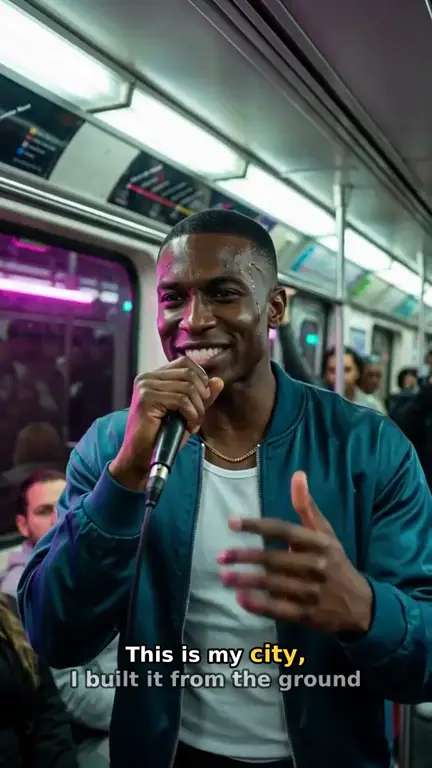
Real output · “Neon Crown”, hip-hop
Clipbeat at a glance
| Price per video | from $5 Standard, $19 Plus or $39 Premium — one-time, priced by song length; a 4-minute song is $14 Standard, $30 Plus or $69 Premium |
|---|---|
| Longer songs | Priced by length, up to 20 minutes; the exact price is shown before you pay |
| Before you pay | Your upload, the timed lyrics and your brief (who sings, the style, the places) — no card needed |
| Scene-by-scene plan | After the $5 chorus preview, before you pay for the full video |
| Chorus preview | A short lip-synced clip of your singer singing your chorus, included in the $5 credit pack |
| Subscription | None — nothing renews |
| Lip-sync | Plus, Premium and Pro (the singing shots follow your vocal) |
| Output | 1080p MP4 without a watermark, 16:9 or 9:16 (1:1 and 4:5 from the editor) |
| Upload | MP3, WAV, M4A, FLAC or AIFF, up to 500 MB |
| Lyrics | Transcribed automatically in 50+ languages, shown word by word, karaoke-style |
Step by step
- STEP 1
Prepare a finished audio file
Export the final mix as mp3 or wav. If the song comes from Suno or another AI music tool, download the file from there first.
- STEP 2
Get the lyrics timed word by word
Upload the song and let Clipbeat transcribe the vocal with a timestamp per word. Read through it and fix any misheard words before planning scenes.
- STEP 3
Write a short brief
Decide the style, the story and the look in one or two sentences each — for example "night city hustle, neon magenta and teal, wet streets".
- STEP 4
Plan one scene per lyric line
Give every sung line its own scene and the instrumental parts scenes of their own. In Clipbeat this storyboard is generated from your lyrics after the chorus preview, before you pay for the video.
- STEP 5
Lock the main character
Describe the performer or protagonist once in detail and reuse that description in every scene so the same person appears throughout.
- STEP 6
Animate, cut on the beat and add lyrics
Turn each scene into a short clip, place the cuts on beats and show the words as they are sung. In Clipbeat this runs after a one-time payment.
- STEP 7
Review, export and publish
Check the video on the timeline, replace any shot you dislike, then export 16:9 or 9:16 and publish to YouTube, TikTok or Instagram.
A real example: “Neon Crown”
A full hip-hop song made into a video with Clipbeat on Premium — 20 scenes, one for every lyric line, the same singer throughout and 8 lip-synced singing shots.
Step 1: start from the finished song, not a prompt
A common mistake is to begin in a text-to-video tool, generate a few clips you like and then try to fit them to the song. You end up with too few shots, cuts that ignore the rhythm and visuals that have nothing to do with the words. Start from the final audio instead. Its length decides how many scenes you need, and its lyrics decide what those scenes should show.
Use the mastered file, not a rough mix, because timing is calculated from it. If you change the arrangement later, the lyric timing and the cut points have to be redone.
Step 2: time the lyrics before anything else
Word-level timing is the backbone of a lyric-driven video. It tells you where each line starts and ends, which becomes the scene boundaries, and it lets on-screen lyrics highlight word by word as the singer reaches them. Doing this by hand is slow; a speech model gets you most of the way, and a quick read-through fixes the rest.
Clipbeat transcribes lyrics in more than fifty languages. Clear vocals usually come back nearly perfect. Heavily processed or buried vocals may need a few manual corrections, and every word stays editable.
Steps 3–5: brief, storyboard and character
A short brief keeps every scene consistent. Three lines are enough: the musical style, the story or mood, and the colour palette. With that in place, plan the storyboard so that every lyric line has its own scene. A three-minute song typically ends up with somewhere between fifteen and thirty scenes, which is what makes a video feel edited rather than looped.
The single biggest quality jump comes from locking a main character. Write one detailed description — age, face, hair, clothing — and include it in every scene that features that person. Without it, AI models invent a new face for every shot and the video reads as a montage of strangers.
Step 6: motion, cuts and on-screen lyrics
Each scene image is animated into a short clip with a motion prompt such as "slow push-in toward his face" or "drone descends toward the street grid". Singing close-ups look far better when the mouth follows the vocal; that needs a dedicated lip-sync model working on the isolated vocal, not a generic video model.
Cuts should land on beats, and lyrics should appear as they are sung. When both line up, viewers stop noticing the edit and start following the song.
What the finished result looks like
"Neon Crown" is a hip-hop demo song made for our showcase. Its video, made with Clipbeat on Premium ($39), runs 2:08, has 20 scenes and 8 lip-synced singing shots. Its showcase page lists the brief, the locked character description and every scene's prompts, so you can copy the approach for your own song.
Doing it in Clipbeat: what comes before payment and what is paid
In Clipbeat, uploading the song, the timed lyrics and the brief come before any payment. The first payment is the $5 chorus preview, a short lip-synced clip of your chorus; after it you see the full lyric-matched storyboard. Step 6 is where AI generation happens, and it is a one-time payment for that video — from $5 Standard, $19 Plus or $39 Premium. There is no subscription.
- Standard ($5): a scene for every lyric line, full motion, word-by-word karaoke lyrics, 1080p without a watermark.
- Plus ($19): the full song with your singer lip-syncing the chorus to your vocals (2–3 shots) on top of at least as many moving scenes as Standard.
- Premium ($39): the best image and motion models, extra quality checks on every shot and lip-sync on singing shots.
- Ongoing work: one-time credit packs from $5 ($1 = 20 credits) for individual generations in the editor. There is no subscription.
Step 7: review, export and publish
Watch the whole video once before publishing. Everything sits on a Studio timeline, so a weak shot can be regenerated or replaced with your own footage, a lyric can be corrected and a cut can be nudged. Export in 16:9 for YouTube or 9:16 for TikTok, Reels and Shorts, export only the chorus as a teaser, or publish directly to connected YouTube, TikTok and Instagram accounts.
Frequently asked questions
Do I need video editing experience?
No. The storyboard, character, cuts and lyrics are handled for you. The timeline is there if you want to change something by hand.
How many scenes should a music video have?
Roughly one per lyric line plus a few for instrumental sections. For a song of two to three minutes that usually means fifteen to thirty scenes.
Can AI make the singer's lips match my vocals?
Yes, on Premium ($39). Singing shots are lip-synced to your isolated vocal so the mouth follows the words.
What does it cost to make a music video with AI in Clipbeat?
The scene plan comes after the $5 chorus preview, before you pay for the video. The video is a one-time payment: from $5 Standard, $19 Plus or $39 Premium. No subscription is required.
Can I use a song I made with Suno?
Yes. Download the song from Suno as an MP3 or WAV file and upload it; importing by Suno link is not supported.
Make your music video with AI
Upload your song, preview the chorus and get the storyboard. Your video from $5 one-time — no subscription.
Make my video