How to keep the same character across AI video scenes
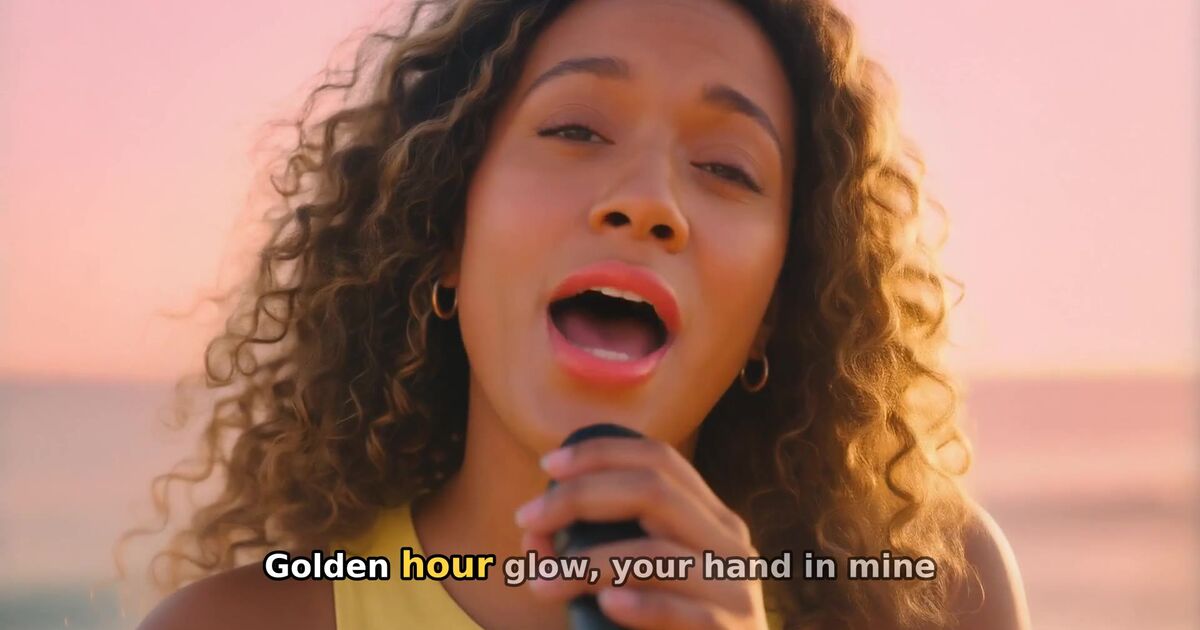
To keep the same character across AI video scenes, define the character once in detail, create one approved reference image, and generate every scene from that reference rather than from a text description alone. Keep the outfit, lighting direction and art style fixed within each section of the song, put the action in the prompt and the identity in the reference, and check every shot for drift before it goes into the edit. Tools built for music videos, such as Clipbeat, lock the main character across all scenes automatically.
A music video with a lead character who changes face every few seconds feels broken, even to viewers who could not explain why. It is the most common giveaway of an AI-made video. This guide explains why characters drift between AI shots and the practical workflow that keeps one person recognisable from the first verse to the last chorus.
Why AI characters drift between scenes
Image and video models do not remember. Each generation starts from noise and a prompt. If you write "a young woman with red hair in a leather jacket" twenty times, you get twenty different young women with red hair in twenty slightly different leather jackets. The words describe a category, not a person.
Drift gets worse with:
- Changing camera distance. A face in a close-up and the same face in a wide shot are generated very differently.
- Changing light. Hard sunset light and soft blue night light change skin tone, hair colour and even apparent age.
- Changing style words. "Cinematic", "anime" and "photoreal" in different prompts produce different people.
- Long prompts. The more you describe the scene, the less weight the model gives the character.
- Video motion. Turning heads, fast movement and long clips let the face morph frame by frame.
The reference-first workflow
The reliable way to keep a character consistent is to stop relying on text for identity. Use text for what changes — the action, the place — and an image for who the person is.
- Write a character sheet. Age range, face shape, skin tone, hair colour and style, eye colour, build, distinguishing features (freckles, a scar, glasses), and an outfit for each section of the song. Be specific: "shoulder-length copper hair with a centre part" beats "red hair".
- Generate and approve one reference image. A clear, front-facing, evenly lit portrait from the chest up. Generate several and pick one. This image is now the character.
- Generate every scene from the reference. Use image-to-image or a reference-image feature so each new shot starts from the approved face. Keep the identity description short and the same in every prompt.
- Put the action in the prompt. "She walks through a rainy street at night, looking over her shoulder." The reference carries who she is; the prompt carries what she does.
- Animate from the approved still. Turn the approved image of each scene into a video shot, rather than generating video from text. Shorter shots morph less.
- Review and replace. Watch every shot next to the reference. Replace any where the face, hair or outfit changed. One bad shot in twenty is enough to break the illusion.
Keep the variables under control
Beyond the reference image, a few constants help a lot:
| Keep fixed | Why it matters |
|---|---|
| Art style (photoreal, anime, painted) | Different styles produce different faces |
| Outfit within a song section | Clothes are what viewers recognise first, especially in wide shots |
| Lighting direction and colour per section | Light changes perceived skin tone and age |
| Hair | Hair is the second thing viewers recognise |
| Camera lens feel | Very wide and very long lenses distort faces differently |
You can change the outfit or the light deliberately at a section break — the bridge is a natural place — but change it once and keep it.
Wide shots, close-ups and the back of the head
Faces drift most in wide shots, where the face is only a few pixels tall. Two tricks from real filmmaking help:
- Let the outfit carry wide shots. In a wide shot, viewers recognise the character by silhouette, clothes and hair, not facial features. A distinctive jacket or colour does the work.
- Use shots that hide the face. Hands on a steering wheel, a figure seen from behind walking into the distance, a silhouette against a window. These are cinematic and give the model nothing to get wrong.
Save the close-ups for the moments that matter — the hook, the emotional lines — and make sure those are perfect.
How Clipbeat handles character consistency
Clipbeat is built around a single main character per video. When you describe your singer or lead, the AI Director turns that description into a character that is locked across every scene. Each lyric line gets its own scene, and each scene is generated with that same character, so the person in the chorus is the person in the verse. The Premium tier adds extra quality checks on every shot.
You can also use your own face. With a "Me" selfie, a saved character or "My artist", the video stars you instead of an AI-generated person. The usual rules apply: only your own face or that of an adult who clearly agreed, and never a celebrity or public figure. The showcase has full-song examples, each with a making-of page that shows the locked character description and the scene list.
Consistency and lip-sync
If your video has performance shots with lip-sync, consistency matters even more. The viewer is looking straight at the face while it sings. A mouth that matches the words on a face that changes between shots still looks fake. Build the character first, approve it, then add lip-sync to the performance shots. See how to make a lip-sync music video with AI.
Multiple characters
Two characters double the problem. A few rules:
- Give each character a reference image and a strongly different look — different hair colour, different clothes, different silhouette — so the model does not blend them.
- Keep shots with both characters to a minimum; they are the hardest to get right.
- Use over-the-shoulder and back-of-head shots for scenes between them.
For most songs, one main character and a few background people are enough.
A quick drift checklist
Before you export, scrub through the video and check:
- Same face shape, hair colour and length in every shot?
- Same outfit within each section?
- Same apparent age?
- No shots where the face morphs mid-clip?
- Hands and accessories (glasses, earrings, a guitar) consistent?
Replace the worst offenders. Viewers forgive a slightly simpler shot much faster than a different person.
What it costs
Uploading your song to Clipbeat comes before you pay; after a $5 chorus preview you get the lyric-matched storyboard, with the main character planned across every scene. The full-song video is a one-time payment: $5 Standard, $19 Plus or $39 Premium with lip-sync on the singing shots and extra quality checks. No subscription; credit packs for hand-made scenes start at $5.
Frequently asked questions
How do I keep the same character in AI-generated video?
Create one approved reference image, generate every scene from it, keep the outfit, light and style fixed within each section, and check each shot for drift.
Why does my AI character look different in every scene?
Each generation starts fresh, and a text description matches many possible people. Camera distance, light and style changes make it worse. A reference image fixes most of it.
Can I use my own face as the character?
In Clipbeat, yes, through a "Me" selfie, a saved character or "My artist". Only your own face or that of an adult who clearly agreed; never a celebrity or public figure.
Does Clipbeat keep the same singer across the whole video?
Yes. The main character is locked across every scene, so the singer stays the same from the first line to the last.
How many characters can a music video have?
As many as you like, but each extra character makes consistency harder. One main character with a distinctive look is the most reliable choice.
Turn your song into a music video
Upload your song, watch your chorus preview and check the lyric-matched scene plan. Your full video is one-time, from $5 — no subscription.
Start with your songUpload and plan free · $5 one-time for your video · no subscription